Job scheduling software for trade teams
Plan the week on one calendar, put people and vans into teams, and give each crew its day on a phone. When a date moves, everything that depends on it moves too.


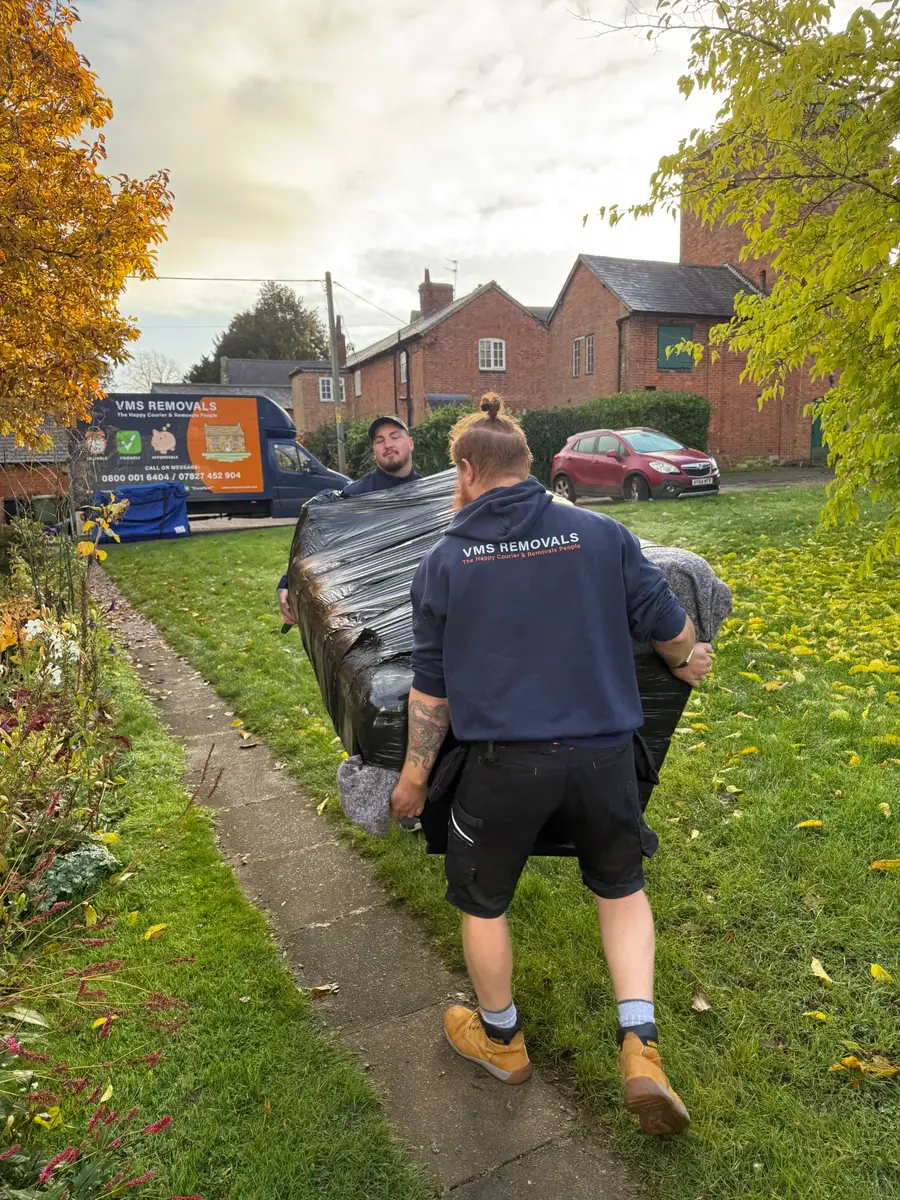
Real crews on real jobs, from the removals company Hubber was built in.
A work calendar for the whole week
The Work Calendar shows every booked job in day, week, month or list view, and remembers the view you prefer. Jobs carry their team colour, so you can see at a glance who is where. Drag a job to another day to move its date, and Hubber asks you to confirm before it changes anything. Jobs with no date yet wait in an unscheduled tray. Moves that run over several days appear on each day, numbered, so day two is never forgotten.
- Day, week, month and list views
- Drag a job to a new date
- Multi-day jobs and jobs with no date yet
- Provisional dates shown differently from confirmed ones
Build the teams on the rota
Crews are put together on Staff Rota. The Teams view shows the day's jobs and the people working, and you build each team by adding people and a van. Each team has a colour that follows it onto the calendar and the crew's phones. Changes stay as a draft until you press Publish, so you can rework Friday three times without anyone getting three messages. Publishing sends each person one summary of their shifts. See rota, time and pay.
Dispatch Hub is the crew's day
Dispatch Hub shows the day's jobs grouped by team colour. Each card opens the full job: the address with directions, the survey, the quote the customer approved, notes from the office and the button to sign the job in and out. The office sees every team. A crew member sees the jobs they are on. A map shows where the day's jobs are, and the route order for a crew can be optimised by road distance with one button, which helps on days with several short jobs.
- Jobs by team colour, with the van and crew named
- Directions, survey and quote one tap from the card
- Route order optimised per crew
Repeat work that books itself
For regular customers, set up a recurring job once: weekly, fortnightly, every four weeks, monthly or a number of days you choose. Hubber creates each visit ahead of time so it appears on the calendar like any other job. You can pause a series and resume it later without a backlog of missed visits appearing. When a visit is completed, Hubber can raise and email its invoice, and regular customers can pay by Direct Debit through GoCardless. This suits cleaning rounds, grounds maintenance and regular collections.
When the date changes, everyone knows
Moving a job on the calendar updates the quote and the customer's record as well, so the office is not left with two different dates. The customer can get an email about the new date, and you can send an on my way email from the job on the morning. Crew get notifications on their phones, and Hubber can be installed to the home screen like an app. A job stays reachable for the crew who opened it until it is properly finished.
Questions about scheduling and dispatch
How do I assign a job to a crew?
On Staff Rota's Teams view. You build the teams for the day from the people who are working, add a van and give each team its jobs. Dispatch Hub then shows each crew its own day. The rota stays a draft until you publish it.
Can crews see their jobs on a phone?
Yes. Hubber runs in the phone's browser and can be added to the home screen. Crew see the jobs they are on, with directions, the survey and the sign in and out button. They do not see other teams' jobs unless their role allows it.
Does Hubber plan routes?
It can put one crew's jobs for the day into a sensible order by road distance, using Mapbox, and shows them on a map. Where vans are during the day is shown on the live van map under fleet.
Can a job run over more than one day?
Yes. Pick each date the job runs on, including days that are not next to each other. The job shows on each of those days, and the crew finish each day separately before closing the job on the last one.
Can I set up jobs that repeat?
Yes. A recurring job creates each visit for you on the pattern you choose, and can invoice each one when it is completed. You can pause or end the series at any time.
Works with the rest of Hubber
Often used by: Removals Cleaning Landscaping and gardening Plumbers and heating
- Crew app and job sign-offCrews follow the checklist, take photos and get the customer's signature.
- Rota, time and payPublish the rota, clock in on a phone and run pay from real hours.
- Customer emailsThe right email at each step of the job, sent automatically.
- FleetDaily van checks, MOT and tax dates, defects and maintenance.
Run your next job in Hubber
Start a 14-day free trial. Set up your services, send a quote and book a job today.
A card is needed to start the trial. You are not charged until day 15, and you can cancel before then.